Task groups
Section titled “Task groups”When the agent is in planning mode, it handles large and complex tasks with task groups, which break down problems into smaller, more approachable units of work. Often, the agent works on multiple parts of a larger task at the same time, and task sections present these changes to you. The following sections describe an example task group.
Overview
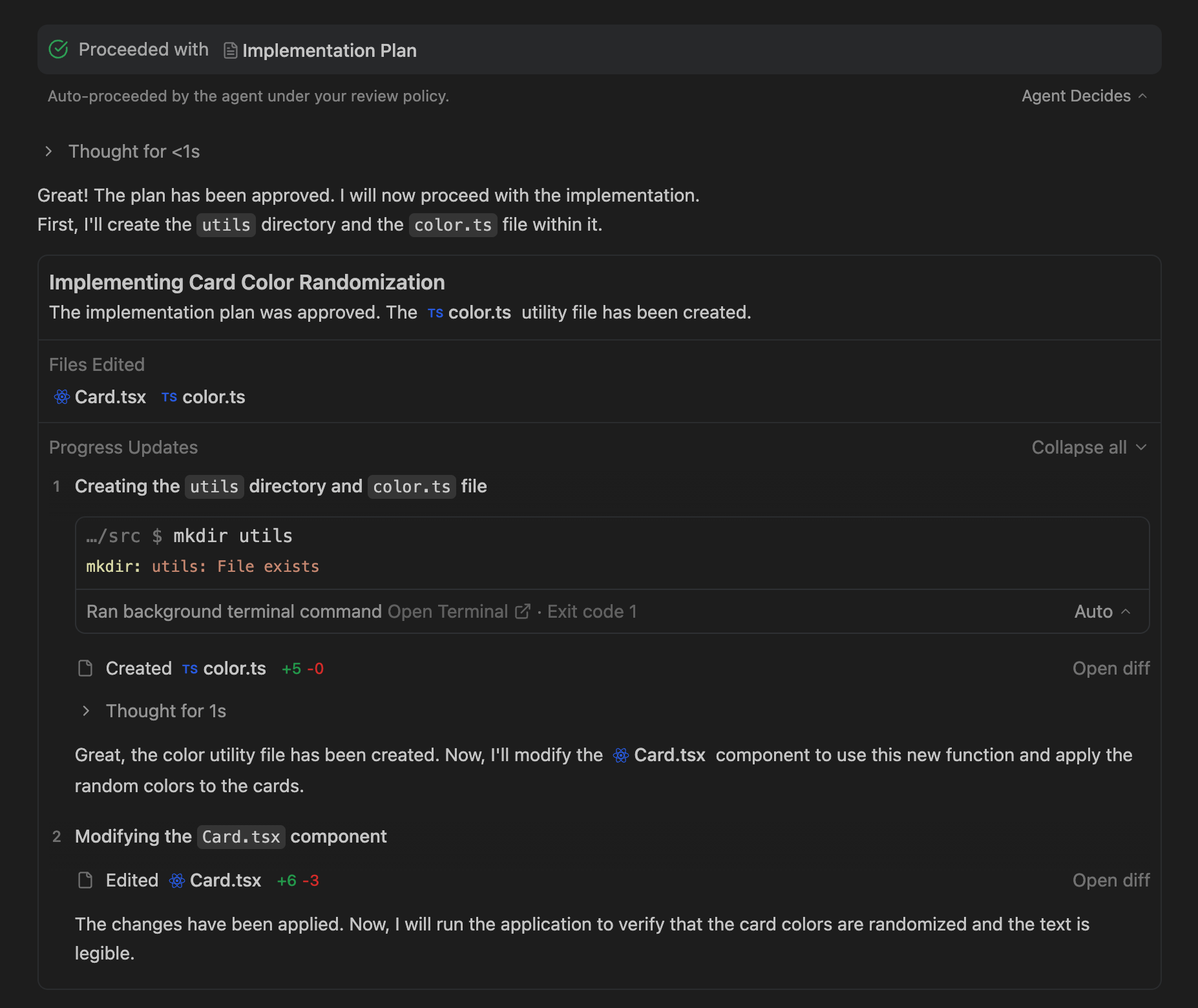
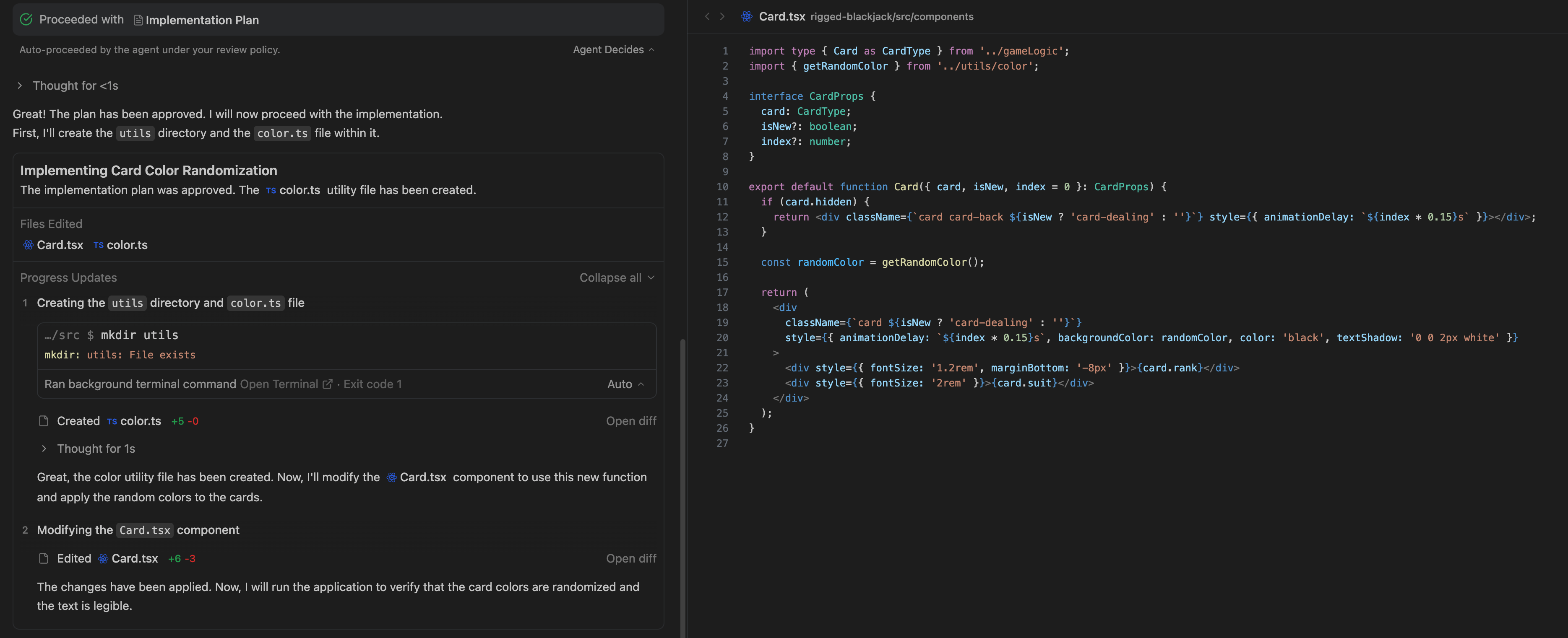
Section titled “Overview”The top component of the task group specifies the overarching goal of the task and summarizes the changes made within this unit of work. An edited files section lets you quickly audit changes: click the file pill to view the current state of the changed files.
Subtasks and progress updates
Section titled “Subtasks and progress updates”Within a task group, the agent identifies subtasks that modularize necessary changes, and you can view all work done by the agent within these progress update sections. By default, the details in each subtask are collapsed, but you can use the toggle to expand the exact steps that the agent took.
Pending steps
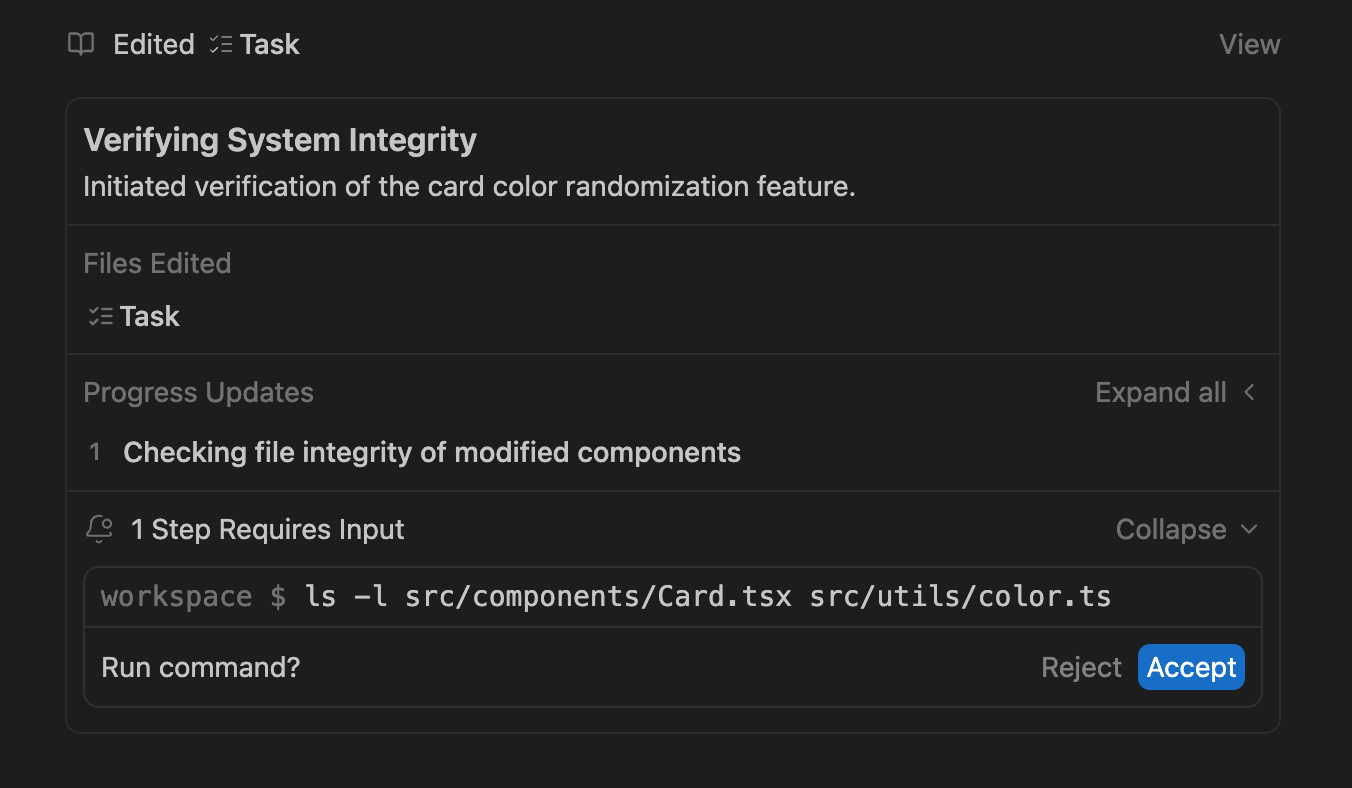
Section titled “Pending steps”Sometimes, progress updates include pending steps, such as browser setup or terminal commands that require approval. Instead of requiring you to expand all updates, the agent provides a dedicated section at the end of the task group where you can review these pending steps.